The password manager LastPass is without doubt one of the most popular online password management solutions. A core reason for that is that it is available as a free and premium version which share much of the same functionality. The free version of Last Pass supports all the features that you would come to expect from a password manager. This includes an online database of account information that get synchronized across browsers if you want, automatic form filling, one-click login on websites and the ability to store secure notes in your vault which can be an excellent way of storing important documents and data in the cloud.
The vault can be accessed from any web browser, even if an extension or plugin is not installed. This is great if you often work on public computer systems.
Installation
A universal installer is available on the LastPass website that you can download and run to install the password manager in all web browsers running on your system at once. Well, not in all, but the major browsers are all supported: Internet Explorer, Firefox, Chrome, Safari and Opera. You can select the browsers that you want it installed in as well.
If you do not have an account yet you can create one during installation which is a seamless operation that should not take longer than a minute to complete. What I like is the option to scan the browsers for insecure items, which means that you can basically import all of the passwords and login related information into the password manager. That’s great if you have been using a browser’s built-in password manager.
Note that any open supported browser will be closed during the operation, and that you will be asked to enter your master password if you are protecting the web browser data with a password.
What you cannot do, and that is a bit unfortunate, is migrate account information from KeePass. RoboForm seems to be supported though according to a support entry on the LastPass website.
Once you have installed LastPass in your web browsers you will notice the new icon that is placed in the main toolbar of the browser. A click on the icon provides you with options to open your vault on the Last Pass website to manage all of your passwords, access recently used sites or manage your data right from the menu.
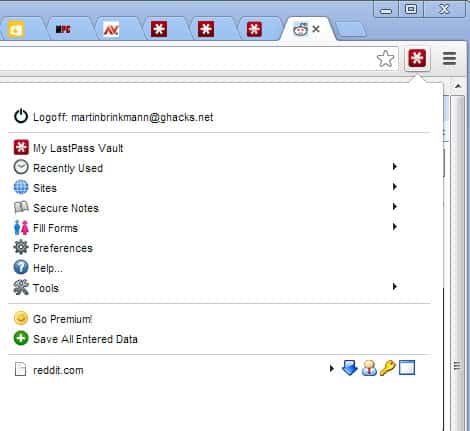
Login related information for the site you are on are directly displayed in the menu. Here you see if auto-login is configured and get options to copy your username, password or saved url which may be useful if you need to enter the data into another program.
LastPass Tips

LastPass offers lots of options to improve the password manager’s usability and security. I’d like to mention some of them which I consider to be important for the majority of users:
- Hotkeys are available in the preferences. You can for instance open the password generator with Alt-G or configure a hotkey to log off.
- You can configure the password manager to warn you if you are filling out insecure forms under Advanced in the options.
- You can limit log ins to your Last Pass account to select countries, and prevent logins from the TOR network.
- An automatic log off can be configured so that you are automatically logged off after a set period of time (from 5 minutes to 2 weeks).
- Last Pass supports Google Authenticator and Yubikey for two-factor authentications. This improves the security by requiring you to enter a second code that is generated in real-time during log in to your vault.
- You can attach files to your secure notes which is great for adding documents, scanned passports and the like to the vault so that you can access them wherever you are (provide you have Internet and your LastPass login at hand).
- Since it is cloud based, all data syncs across all browsers that support LastPass.
- You can make use of one-time passwords to access you vault, which is excellent if you need to log in on a public computer or a computer that you do not have full control over.
- LastPass can check all of your passwords to assess their security so that you know exactly where to change passwords to improve login security.
LastPass Premium
How is LastPass generating revenue you may ask, and one of the answers is premium accounts (another is Enterprise). LastPass Premium is available for $12 a year, and if you subscribe, you get the following additional features on top of all the features that the regular version of LastPass offers:
- Mobile device support. You get access to LastPass on Android, iPhone, Windows Phone, Blackberry and other mobile devices.
- Yubikey support to enable multi-factor authentication.
- LastPass Sesame for multi-factor authentication using an USB Flash drive.
- IE Anywhere to use LastPass without installing a plugin in the browser.
- No advertisement.
- Email and phone priority support.
Upgrading your account to premium makes sense if you often use mobile devices and want direct access to your LastPass vault on those devices, or if you want to use another feature that is only available for premium users. Back when I was using LastPass as my main password manager I subscribed to premium just to give the company something back for their awesome product.
Verdict
LastPass is not just a password manager. What sets it apart is the functionality that the developers have build around it. You get much needed extra security in the form of multi-factor authentication, options to store documents securely in your vault, and protection against attacks coming from countries that you never went to, if you want.
Giveaway
We are giving away 20 LastPass Premium accounts for one year. You do not have to be a LastPass user yet to win them, as they work just fine for new users as well. Leave a comment below for a chance to win a license. I’d like to know which password manager, if any, you are currently using.
You can access the rules of the giveaway here.
DIGITAL JUICE


No comments:
Post a Comment
Thank's!