TinyWall has been designed to improve the default firewall of Windows Vista, Windows 7, and newer versions of the Microsoft Windows operating system. The program uses the filtering mechanics of Window’s native firewall and not its own drivers or kernel components like other software firewalls might.
TinyWall by default is set to be restrictive, which the program lets you know about on the last page of the installation. While some programs that rely on the Internet may still work out of the box, others, like Firefox Aurora, were blocked from accessing it. The stable version of Firefox, as well as other popular browsers and programs are all whitelisted automatically by the program.
This is however not that big of a issue, as it is relatively easy to whitelist applications or processes in the program. All you need to do for that is to right-click the program’s system tray icon and select one of the three available whitelisting options (by process, file or window). The process whitelisting option for instance displays a list of all processes currently running on the system, and you can whitelist one with a double-click.
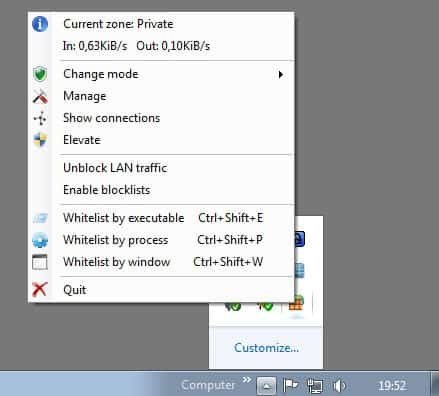
If you prefer to work with the keyboard, you can use the keyboard shortcuts instead to speed up things further. You can alternatively click on Manage in the context menu, and there on Application Exceptions, to manage the exceptions from here.

Here you can add or remove applications from the list, or use the detect button to find software on the system that you may want to whitelist in the firewall.
Next to the application exception menu, there is also a special exceptions menu where you can allow task related applications. You will for instance notice that neither Windows Remote Desktop, File and Printer Sharing nor Windows Remote Assistance are enabled by default.

Once you are finished here, you can switch to the general tab to add an application password to avoid other people tampering with the firewall configuration, and to enable port-based or domain-based blocklists for malware and advertisement.
Show blocked apps and connections
You can also use the program to display all active connections right now. The program lists the process, protocol, ports and other relevant information in a new window. One interesting option here is to display all blocked apps of the last two minutes, which can be very useful especially right after the first installation of the program, and after installing new software or programs to either check whether the program tried to access the Internet, or to unblock it Internet access is required.
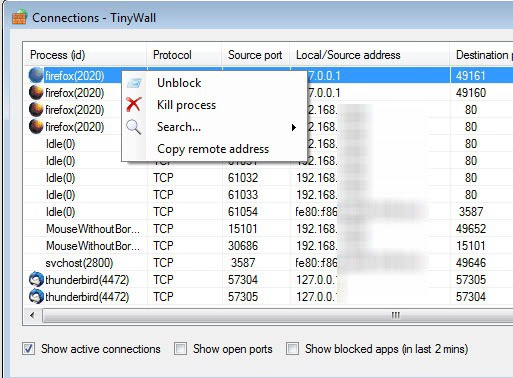
You can use the same window to display all open ports on the system, which can be useful to make sure that only ports that the system needs are open for connections.
Firewall modes
The firewall supports five different modes that you can switch between easily from the context menu. Besides the normal protection mode you can switch to a mode that is blocking every connection, a mode that is allowing outgoing connections, one were the firewall is disabled, and an auto-learning mode.
Especially the option to cut off the Internet traffic can be quite useful, and users who are not that experienced when it comes to firewalls may prefer to run it in auto-learn mode.
Other features
The firewall is feature-rich, here is a short selection of supported features that have not been mentioned yet:
- Full IPv6 support
- Hosts file protection
- Allow LAN connections
- Restrict processes to LAN connections
- Support for network zones, e.g. home and work
- Support for temporary rules
Closing Words
If you are working with the Windows Firewall you may find TinyWall useful as it extends the firewall’s feature set significantly. Even if you are currently working with a third party firewall, be it commercial or free, you may find TinyWall superior to the solution that you are working with right now.
Update: The program requires the installation of the Microsoft .Net Framework 3.5 SP1 (or newer) under Windows Vista. Windows 7 users do not need to install anything.
DIGITAL JUICE


No comments:
Post a Comment
Thank's!